Key Points
- Microsoft is testing Remote Lock, letting IT admins freeze lost or stolen Windows devices without erasing any data.
- The feature ships in Windows 11 Insider Preview Beta build 26320.10003 and Experimental build 26340.10013.
- Once locked, only an administrator can lift it through Intune; PINs, passwords and local admin accounts stop working.
The latest:
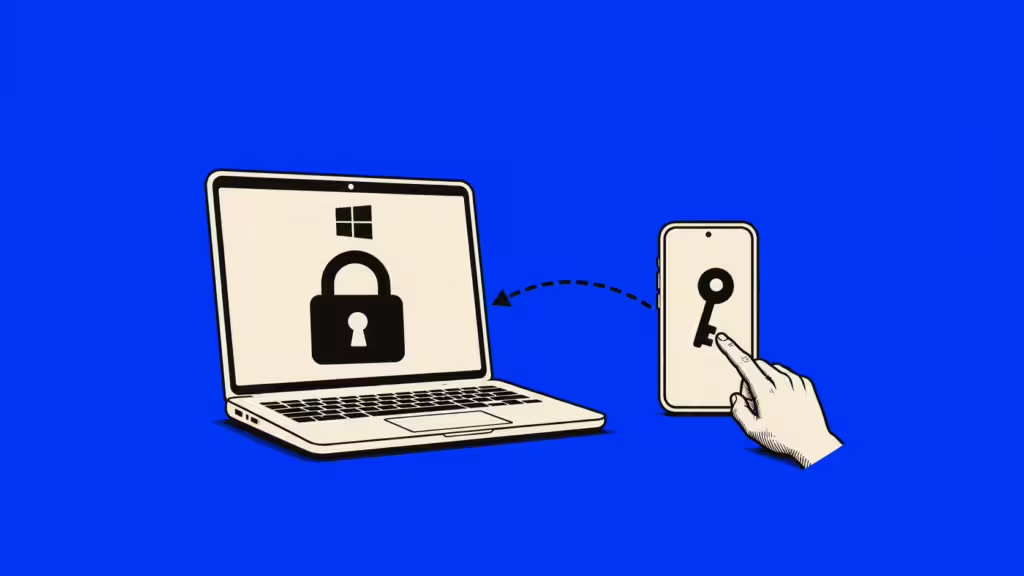
Enterprise IT departments will be able to freeze a lost or stolen Windows machine without wiping it, under a feature Microsoft is now testing with Windows 11 Insider Preview users. Called Remote Lock, it signs out every active session and hides all sign-in options while leaving the device enrolled, managed and intact. Only an administrator can unlock it, remotely, through Microsoft Intune.
Details:
- The builds: Microsoft said Remote Lock is shipping in two preview channels: Beta, at build 26320.10003, and Experimental, at build 26340.10013. Microsoft has not announced a general availability date for the feature.
- Who can use it: According to Microsoft, admins apply the lock through Intune custom configuration profiles. Eligible machines are Microsoft Entra-joined, hybrid-joined or MDM-enrolled devices running Windows Enterprise, Education or Pro editions. Consumer editions are not listed among the supported targets.
- What the lock does: Stephen Lines, Windows Insider communications lead, said the system signs out every active session, hides all sign-in options and shows a locked screen, adding: “Nothing is erased: the device stays enrolled and managed, BitLocker stays on and user data stays in place.” He said the lock holds across restarts and while offline.
- The credentials carve-out: Microsoft said the user’s own credentials remain valid after a device is locked and can still be used to sign into other machines that have not been locked. The lock targets the hardware, not the account, so a worker whose laptop is stolen is not shut out of corporate systems entirely.
- How admins trigger it: Per Microsoft’s procedure, admins create a custom policy under Devices, Windows, Configuration for Windows 10 and later, set LockState to 1, and assign it to a device group reserved for locked machines. The lock applies at the device’s next check-in rather than instantly.
- Reversing it: To unlock, Microsoft said admins build a second profile with LockState set to 0 and move the device from the lock group to the unlock group. The transition is handled entirely through group membership in the Intune admin center.
- The limits: Microsoft said Remote Lock neither isolates the device from the enterprise network nor erases it; admins must use separate isolation and wipe controls in Intune. Users must keep BitLocker enabled, because Windows Recovery Environment, Safe Mode and booting from USB or other media are not blocked.
- Shipping alongside: The same preview builds begin testing advanced security key management, letting users view and manage passkeys stored on a FIDO2 security key individually. Admins can configure enterprise settings including always-required user verification, a minimum PIN length and enterprise attestation.
- Earlier this year: Microsoft announced in August a separate set of privacy controls letting Windows 11 users choose which desktop apps may access their microphone, camera and precise location, part of a broader run of device-level access restrictions.
Between the lines:
The design choice worth noting is what Remote Lock does not do. Because it leaves data in place and keeps BitLocker running rather than wiping the drive, it is positioned for the recoverable-loss case — a laptop left in a taxi — where a full wipe destroys work unnecessarily. The explicit BitLocker warning signals Microsoft treats the lock as a deterrent against casual access, not against an attacker who pulls the drive.
What’s next
Watch whether Microsoft promotes Remote Lock out of the Beta and Experimental channels into general availability, and whether the LockState policy picks up a direct admin-center action rather than the current two-group workaround.